Running AI/ML workloads on NAISS systems
Scope
- Will be covered:
- Introduction for running Deep Learning workloads on the main NAISS AI/ML resource
- Will not be covered:
- A general introduction to machine learning
- Running classical ML or GOFAI
- General HPC intro
NAISS GPU resources overview
- Alvis (End-of-life 2026-06-30)
- NVIDIA GPUs: 332 A40s, 318 A100s, 160 T4s, 44 V100s
- Only for AI/ML
- Arrhenius (to be in operation Q2 2026)
- 1528 NVIDIA GH200s
- Dardel (Probably end-of-life 2026)
- 248 AMD MI250X
- Bianca
- 20 NVIDIA A100s
- Only for sensitive data
Alvis specifics
- What is potentially different on Alvis?
- See extended version at Alvis introduction material
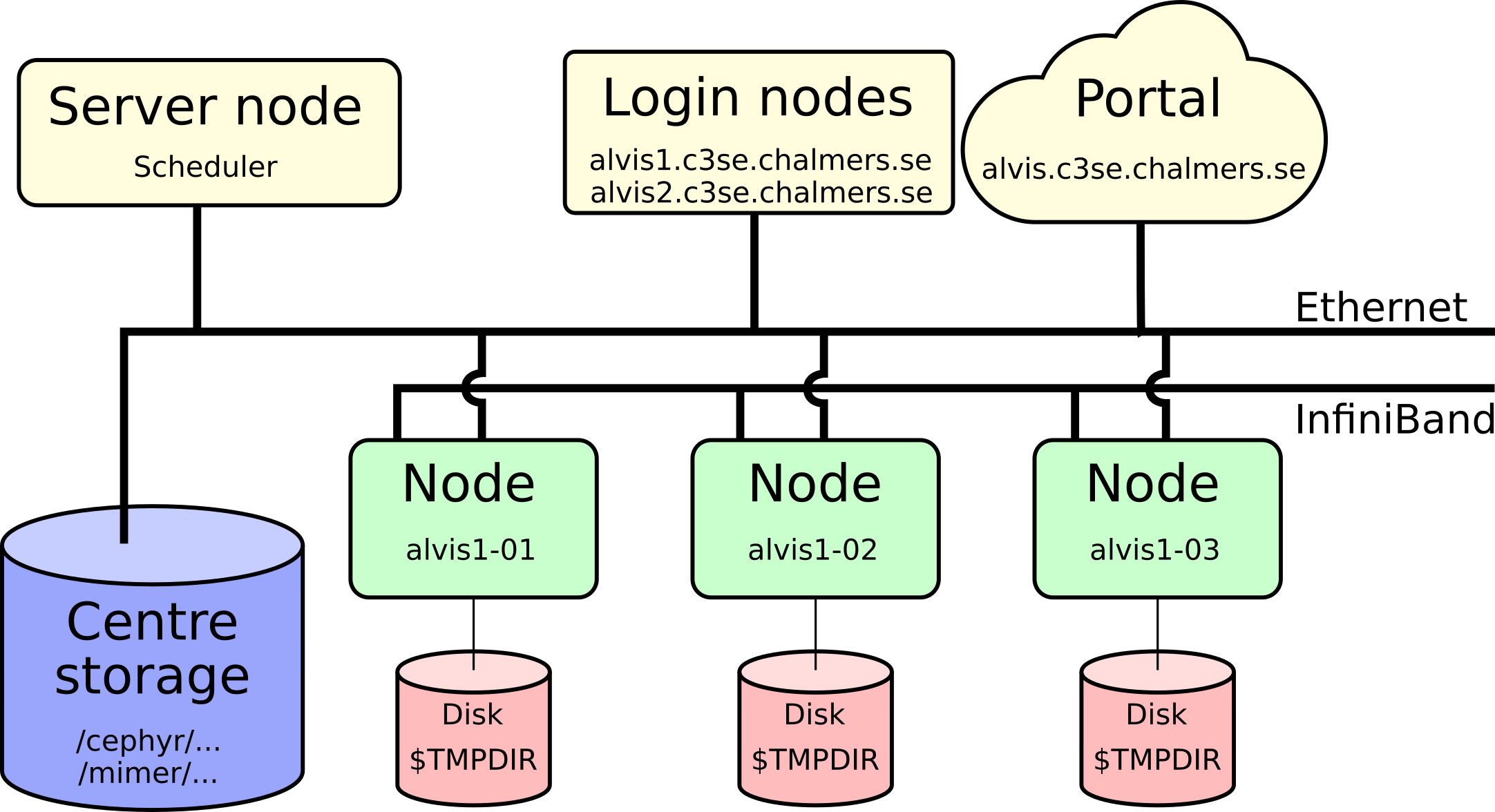
Connecting - Firewall
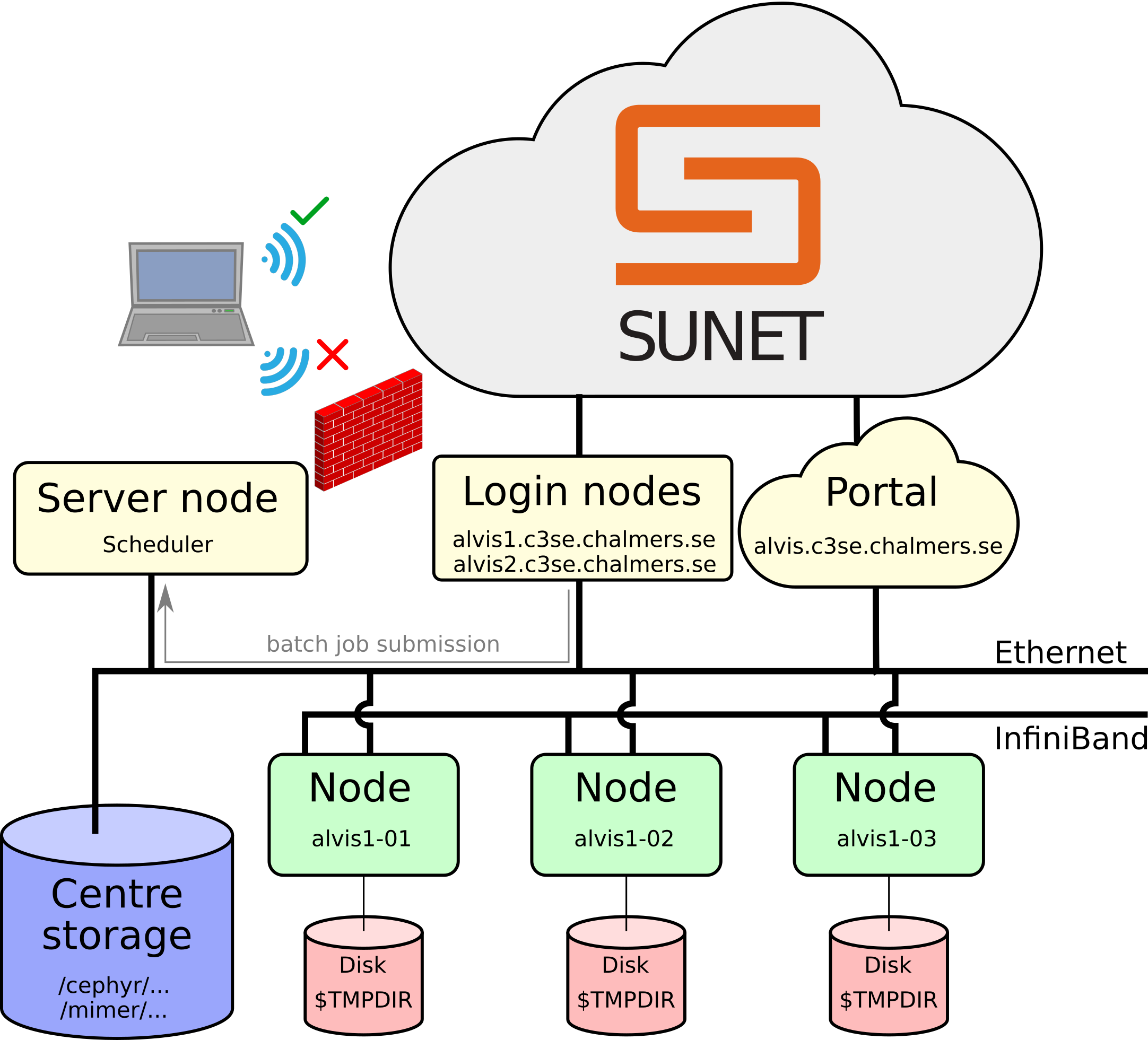
Log-in nodes
alvis1.c3se.chalmers.sehas 4 T4 GPUs for light testing and debuggingalvis2.c3se.chalmers.seis dedicated data transfer node- Will be restarted from time to time
- Login nodes are shared resources for all users:
- don’t run jobs here,
- don’t use up too much memory,
- preparing jobs and
- light testing/debugging is fine
SSH - Secure Shell
ssh <CID>@alvis1.c3se.chalmers.se,ssh <CID>@alvis2.c3se.chalmers.se- Gives command line access to do anything you could possibly need
- If used frequently you can set-up a password protected SSH-key for convenience
Alvis Open OnDemand portal
- https://alvis.c3se.chalmers.se
- Browse files and see disk and file quota
- Launch interactive apps on compute nodes
- Desktop
- Jupyter notebooks
- MATLAB proxy
- RStudio
- VSCode
- Launch apps on log-in nodes
- Desktop
- See our documentation for more
Remote desktop
- RDP-based remote desktop solution on shared login nodes (use portal for heavier interactive jobs)
- In-house-developed web client:
- Can also be accessed via any desktop client supporting RDP at
alvis1.c3se.chalmers.seandalvis2.c3se.chalmers.se(standard port 3389). - Desktop clients tend to give a better experience.
- See the documentation for more details
Files and Storage
/cephyr/and/mimer/are parallel filesytems, accessible from all nodes- Backed up home directory at
/cephyr/users/<CID>/Alvis - Project storage at
/mimer/NOBACKUP/groups/<storage-name> - The
C3SE_quotashows you all your centre storage areas, usage and quotas.where-are-my-filesavailable on/cephyr
- File-IO is usually the limiting factor on parallel filesystems
- Prefer a few large files over many small
Datasets
- When allowed, we provide popular datasets at
/mimer/NOBACKUP/Datasets/ - Request additional dataset through the support form
- It is your responsibility to make sure you comply with any licenses
and limitations
- In all cases only for non-commercial research applications
- Citation often needed
- Read more on the dataset page and/or the respective README files
Software
- Containers through Apptainer
- Optimized software in modules
- Flat module scheme, load modules directly
- Read the Python instructions for installing your own Python packages
GPU hardware details
| #GPUs | GPUs | Capability | CPU | Note |
|---|---|---|---|---|
| 44 | V100 | 7.0 | Skylake | |
| 160 | T4 | 7.5 | Skylake | |
| 332 | A40 | 8.6 | Icelake | No IB |
| 296 | A100 | 8.0 | Icelake | Fast Mimer |
| 32 | A100fat | 8.0 | Icelake | Fast Mimer |
SLURM specifics
- Main allocatable resource is
--gpus-per-node=<GPU type>:<no. gpus>- e.g.
#SBATCH --gpus-per-node=A40:1
- e.g.
- Cores and memory are allocated proportional to number of GPUs and related node type
- Maximum 7 days walltime
- Use checkpointing for longer runs
- Jobs that don’t use allocated GPUs may be automatically cancelled
GPU cost on Alvis
| Type | VRAM | System memory per GPU | CPU cores per GPU | Cost |
|---|---|---|---|---|
| T4 | 16GB | 72 or 192 GB | 4 | 0.35 |
| A40 | 48GB | 64 GB | 16 | 1 |
| V100 | 32GB | 192 or 384 GB | 8 | 1.31 |
| A100 | 40GB | 64 or 128 GB | 16 | 1.84 |
| A100fat | 80GB | 256 GB | 16 | 2.2 |
- Example: using 2xT4 GPUs for 10 hours costs 7 “GPU hours” (2 x 0.35 x 10).
Monitoring tools
- You can SSH to nodes where you have an ongoing job
- From where you can use CLI tools like
htop,nvidia-smi,nvtop, …
- From where you can use CLI tools like
- Use
job_stats.py <JOBID>to view graphs of usage jobinfo -scan be used to get a summary of currently available resources
Running ML
- Machine learning in PyTorch and TensorFlow
- Using GPUs
- Checkpointing
PyTorch
- Move tensors or models to the GPU “by hand”
PyTorch Lightning
- Lightning is wrapper to hide PyTorch boilerplate
TrainerandLightningModulehandles moving data/model to GPUs
Pytorch and PyTorch Lightning Basic Demo
TensorFlow
- Automatically tries to use a single GPU
- Will also pre-allocate GPU memory, hiding actual memory usage to external monitoring tools
- https://www.tensorflow.org/guide/gpu
- Demo
Performance and GPUs
- What makes GPUs good for AI/ML?
- And what to think about to get good performance out of it?
General-Purpose computing on GPUs
- Single Instruction Multiple Threads
- Massively parallel on 1000s to 10000s of threads
- Specialised Matrix-Multiply Units (Tensor Cores)
- Most DL architectures can be reduced to mostly GEneral Matrix Multiplications
Precision and performance (×10¹² OP/s)
| Data type | GH200 | A100 | A40 | V100 | T4 |
|---|---|---|---|---|---|
| FP64 | 34 | 9.7 | 0.58 | 7.8 | 0.25 |
| FP32 | 67 | 19.5 | 37.4 | 15.7 | 8.1 |
| TF32 | 494*² | 156*² | 74.8*² | N/A | N/A |
| FP16 | 990*² | 312*² | 149.7*² | 125 | 65 |
| BF16 | 990*² | 312*² | 149.7*² | N/A | N/A |
| FP8 | 1979*² | N/A | N/A | N/A | N/A |
| Int8 | 1979*² | 624*² | 299.3*² | 64 | 130 |
| Int4 | N/A | 1248*² | 598.7*² | N/A | 260 |
TensorCores for GEMM computations
- FP32 mixed precision GEMM computations with TF32
- TensorFlow (and Lightning) does this by default
- PyTorch only for convolutions by default
torch.set_float32_matmul_precision('high')to enable for matmul
- Tensor dimensions must be multiple of 8
Automatic Mixed Precision
- Calculate with float16 when possible
- Uses loss scaling to not loose small gradient values
- Read more: source, NVIDIA, PyTorch, TensorFlow
Tensor Core Shape Constraints
- To use TensorCores in FP16 precision the following should be in a multiple of 8 in FP16 (source):
- Mini-batch
- Linear layer width/dimension
- Convolutional layer channel count
- Vocabulary size in classification problems (pad if needed)
- Sequence length (pad if needed)
Arithmetic Intensity
- Computational work in a CUDA kernel per input byte
- If too low you’re memory bound
- To increase:
- Concatenate tensors when suitable for larger inputs to layers
- Use channels last format for conv layers
- Wider layers (but only if it makes sense)
Don’t Forget Non-Tensor Core Operations
- Non-Tensor Cores operations are up to 10x slower
- Optimising/reducing these can give most overall improvement
- Compiling models can help (JIT, XLA)
GPU monitoring
nvtop&nvidia-smi- utilization: percent of time any SM is used (not percent of SMs used)
job_stats.py JOBID(Alvis/Vera only)- power consumption as proxy for occupancy
- See profiling section later for more detailed results
Performance and parallel filesystems
- Performance considerations for data loading on parallel filesystems
The parallel filesystem
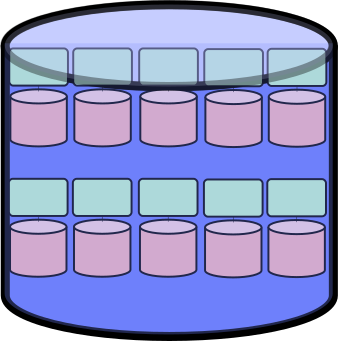
Striping on parallel filesystems
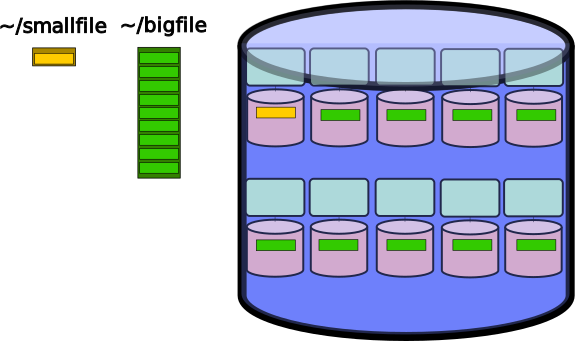
Small vs big files
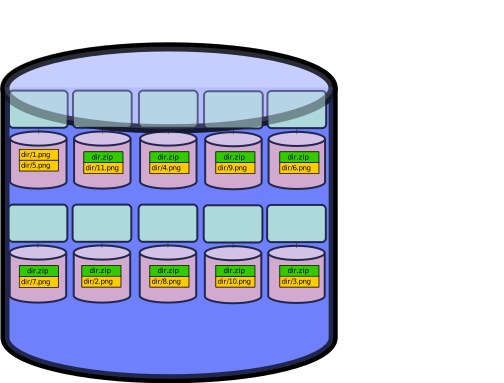
Performance suggestions
- Prefer a few large files over many small
- Many good implementations: HDF5, NetCDF, Arrow, Safetensors, …
- Containers are faster for python environments on start-up
Profiling
Programmers waste enormous amounts of time thinking about, or worrying about, the speed of noncritical parts of their programs, and these attempts at efficiency actually have a strong negative impact when debugging and maintenance are considered. We should forget about small efficiencies, say about 97% of the time: premature optimization is the root of all evil.
Yet we should not pass up our opportunities in that critical 3%. A good programmer will not be lulled into complacency by such reasoning, he will be wise to look carefully at the critical code; but only after that code has been identified. It is often a mistake to make a priori judgements about what parts of a program are really critical, since the universal experience of programmers who have been using measurement tools has been that their intuitive guesses fail.
Print “profiling”
- First thing to try, print what you want to know
- Run with
python -ufor unbuffered mode
- Run with
Scalene
- General sampling Python profiler for both CPU, GPU and memory
- Jupyter:
%load_ext scalene+%%scalene - Lightning: Might be buggy with Scalene
PyTorch profiler
# Plain PyTorch https://docs.pytorch.org/tutorials/recipes/recipes/profiler_recipe.html
from torch.profiler import profile
with profile(...) as prof:
  ...  # run the code you want to profile
print(prof.key_averages().table())
prof.export_trace("trace.json")

# PyTorch Lightning https://lightning.ai/docs/pytorch/stable/api_references.html#profiler
trainer = Trainer(..., profiler="pytorch")
...- use https://ui.perfetto.dev/ to view JSON trace files
TensorFlow profiler and TensorBoard
- Install
tensorboard_plugin_profile - Use TensorBoard callback
Multi-GPU parallelism
- Task parallelism
- Embarassingly parallel
- Data parallelism, for speed-up
- For speed-up when single GPU efficiency is already good
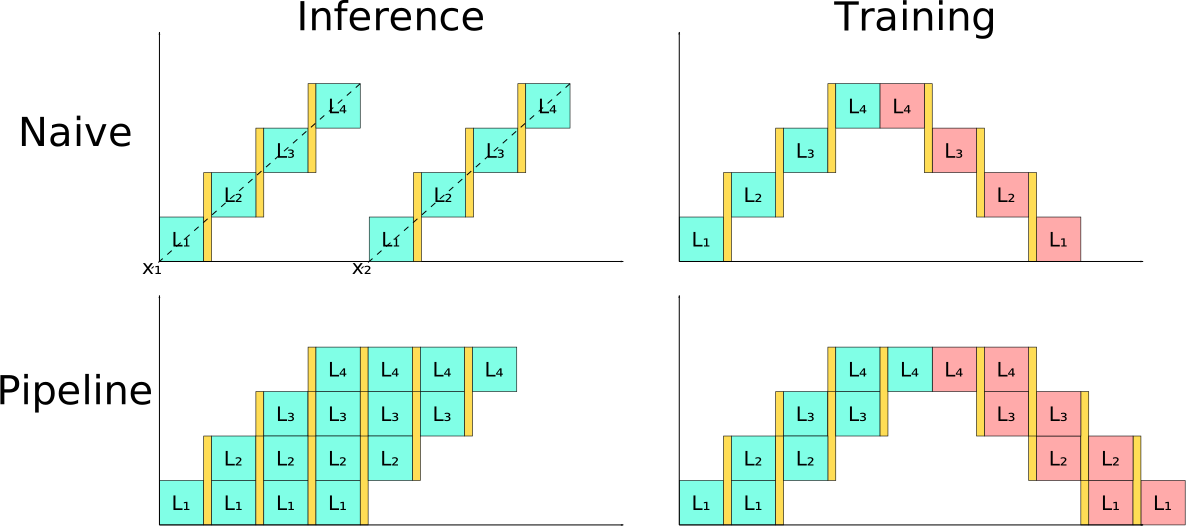
- Flavours of model parallelism
- When the model doesn’t fit on the GPU
Task parallelism
- When little to no communication is needed
- Inference on different data
- Training with different set-up (e.g. hyperparameter tuning)
- Use job-arrays or task farms
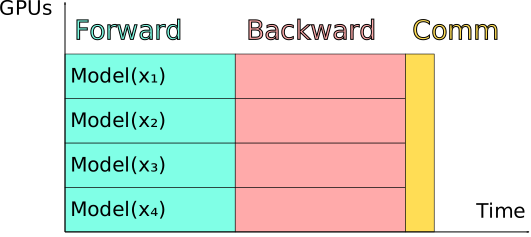
Distributed Data Parallelism
- Copy the model to each GPU and feed them different data
- Communicate gradient updates (all-reduce)
Pipeline parallelism
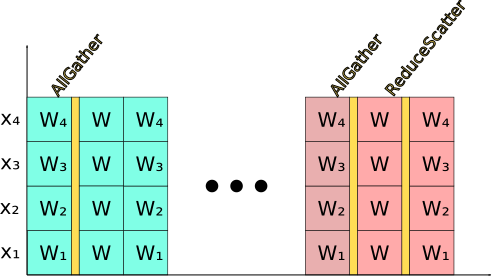
Fully Sharded Data Parallel
- Not available in TensorFlow
- All parameter tensors are fully distributed (Fully Sharded)
- Each GPU computes their own mini-batch (Data Parallel)
Tensor Parallelism
- Megatron LM paper paired row and column parallel layers
\[ \begin{aligned} x_{\cdot i}^{(n+1)} &= \mathrm{Act}\left(x^{(n)}l^{(n)}_{{\cdot}i} + b^{(n)}_{\cdot i}\right), \\ x^{(n+2)} &= \mathrm{Act}\left(\mathrm{AllReduce}^{\sum}_i\left( x^{(n+1)}_{{\cdot}i}l^{(n+1)}_{i\cdot}\right) + b^{(n)}\right). \end{aligned} \]
PyTorch
TensorFlow
Basic LLM inference
- The very basics
Aside: Finding Free Ports
- Needed for a variety of different softwares, including
torchrun,vllmandray find_portsCLI utility available on Alvis
import random
import socket


def get_free_ports(num_ports=1):
    ports = list(range(2**15, 2**16))
    random.shuffle(ports)  # randomize to minimize risk of clashes
    free_ports = []

    for port in ports:
        if len(free_ports) >= num_ports:
            break

        with socket.socket(socket.AF_INET, socket.SOCK_STREAM) as s:
            try:
                s.bind(('', port))
                s.close()
                free_ports.append(port)  # if succesful, add port to list
            except OSError:
                continue # if port is in use, try another one

    if len(free_ports) < num_ports:
        raise RuntimeError("Not enough free ports.")

    return free_ports
HuggingFace Transformers Set-up
- Used by most LLM inference engines
- By defaults saves full models in home directory (out-of-quota)
- Set
HF_HOMEor if already downloaded specify absolute paths to model snapshot directory
- Set
vLLM Inference Engine
vllm serveserves an LLM endpoint talking OpenAI API--tensor-parallel-size="$SLURM_GPUS_ON_NODE"--pipeline-parallel-size="$SLURM_NNODES"
- Alvis documentation
Further learning on LLMs
- NAISS LLM Workshop planned for later in 2026
- To be announced in the NAISS Training Newsletter
Further learning
- Alvis tutorial (slightly dated)
- NAISS Training Events: https://www.naiss.se/training/
- Questions related to training events: https://supr.naiss.se/support/?problem_type=training_event